
Electronic invoicing (EDI)
EDI, or electronic data interchange, is the inter-company communication of business documents, such as purchase orders and invoices, in a standard format. Sending documents according to an EDI standard ensures that the system receiving the message can interpret the information correctly. Various EDI file formats are available depending on your company’s country.
The EDI feature allows companies to automate administrative processes. It may also be required by some governments for fiscal control or to support administrative procedures.
Electronic sending of documents such as customer invoices, credit notes, or vendor bills is one application of EDI.
Odoo supports, among others, the following formats.
Format Name |
Applicability |
|---|---|
Factur-X (CII) |
All customers |
Peppol BIS Billing 3.0 |
All customers |
XRechnung (UBL) |
All customers |
Fattura PA (IT) |
Italian companies |
CFDI (4.0) |
Mexican companies |
Peru UBL 2.1 |
Peruvian companies |
SII IVA Llevanza de libros registro (ES) |
Spanish companies |
UBL 2.1 (Columbia) |
Colombian companies |
Egyptian Tax Authority |
Egyptian companies |
E-Invoice (IN) |
Indian companies |
NLCIUS (Netherlands) |
Dutch companies |
EHF 3.0 |
Norwegian companies |
SG BIS Billing 3.0 |
Singaporean companies |
A-NZ BIS Billing 3.0 |
All customers |
Note
The Factur-X (CII) format enables validation checks on the invoice and generates PDF/A-3 compliant files.
Every PDF generated by Odoo includes an integrated Factur-X XML file.
See also
Configuration
By default, the format available in the send window depends on the customer’s country.
To define a specific e-invoicing format for a customer, go to , access the customer form, go to the Accounting tab, and select the appropriate Format in the Customer invoices section.
E-invoice generation
From a confirmed invoice, click Send & Print. In the Send window, enable the relevant e-invoicing format option (e.g., BIS Billing 3.0), then click Send & Print to generate and attach the corresponding e-invoicing XML file.
Peppol
The Peppol network ensures the exchange of documents and information between companies and governmental authorities. It is primarily used for electronic invoicing, and its access points (connectors to the Peppol network) allow companies to send electronic documents such as customer invoices and credit notes and receive documents like vendor bills and refunds.
In this case, Odoo acts as both an access point and an SMP and enables electronic invoicing transactions without the need to send invoices or bills by email or post.
Note
Make sure to install the Peppol module (
account_peppol).Peppol registration is free and available in Odoo Community.
Supported formats for sending documents include BIS Billing 3.0, XRechnung CIUS, and NLCIUS.
- The following countries are eligible for Peppol registration in Odoo:Andorra, Albania, Austria, Bosnia and Herzegovina, Belgium, Bulgaria, Switzerland, Cyprus, Czech Republic, Germany, Denmark, Estonia, Spain, Finland, France, United Kingdom, Greece, Croatia, Hungary, Ireland, Iceland, Italy, Liechtenstein, Lithuania, Luxembourg, Latvia, Monaco, Montenegro, North Macedonia, Malta, Netherlands, Norway, Poland, Portugal, Romania, Serbia, Sweden, Slovenia, Slovakia, San Marino, Turkey, Holy See (Vatican City State)
Registration
To register on Peppol, go to , scroll to the PEPPOL Electronic Document Invoicing section, and fill in the following information:
Peppol EAS: Peppol Electronic Address Scheme, which usually depends on the company’s country. This field is often prefilled with your country’s most commonly used EAS code. For example, the preferred EAS code for most companies in Belgium is
0208.Peppol Endpoint: usually a Company Registry number or a VAT number
Mobile Number, including the country code (e.g.,
+32in Belgium)Primary contact email
Migration key: If you are migrating from another access point, copy the key from the previous provider.
Click Validate registration.
See also
Peppol endpoint - OpenPeppol eDEC Code Lists (open the “Participant Identifier Schemes” as HTML page)
To request and receive a verification code, follow these steps:
Click Verify phone number in the PEPPOL Electronic Document Invoicing section.
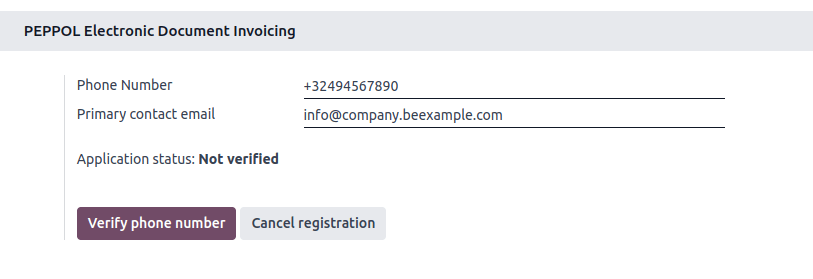
A text message containing a code is sent to the mobile number provided to finalize the verification process.
Enter the code and click Confirm. The registration is then pending activation.
Select another purchase journal in the Incoming Invoices Journal field if necessary.
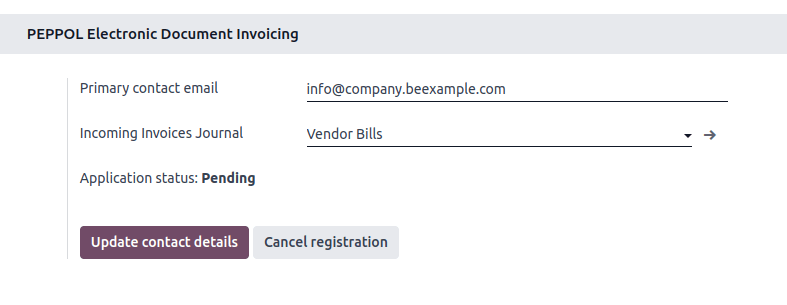
The registration should be automatically activated, and the Application status should be updated within a day.
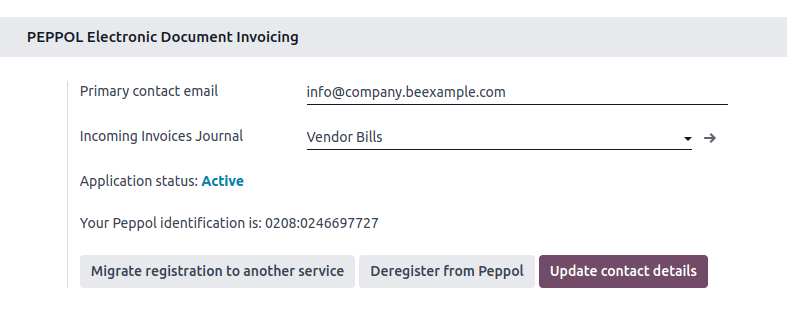
All invoices and vendor bills can then be sent directly using Peppol.
Note
To update the Primary contact email, modify it and click Update contact details.
If you are using an access point from a previous provider, make sure to deregister from it first, then register with your new access point, unless it’s Hermes (BOSA). If using Hermes (BOSA), no action is needed; the migration is handled automatically.
Tip
To manually trigger the scheduled action used to check the Peppol registration status, enable developer mode, open the Settings app, go to , and search for Peppol: update participant status. Open the scheduled action, then click Run Manually.
To try Peppol without sending real data, use the demo mode by setting the account_peppol.edi.mode system parameter to
demo.For advanced testing on Peppol’s dedicated test network, use the test mode by setting the account_peppol.edi.mode system parameter to
test. This option is intended for experienced users only.
Contact verification
Before sending an invoice to a contact using Peppol, make sure the contact is registered as a Peppol participant. To do so, follow these steps:
Go to and access the customer’s form.
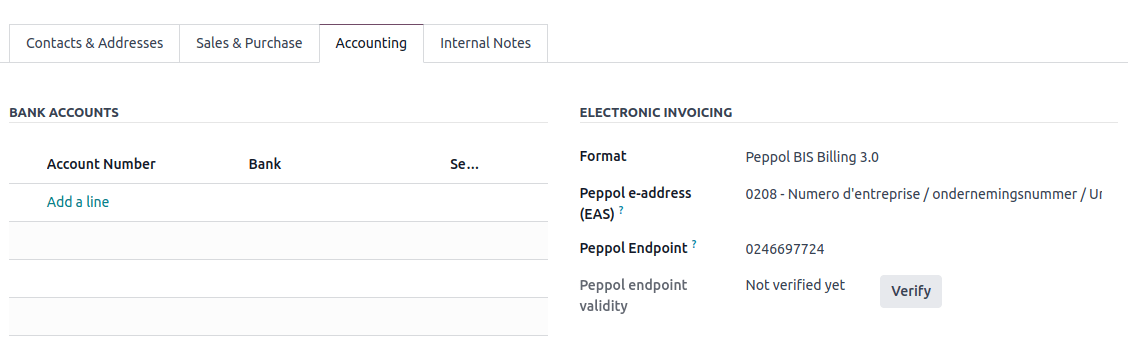
In the Accounting tab, check the following information in the Electronic Invoicing section:
Format: BIS Billing 3.0, XRechnung CIUS, or NLCIUS.
Peppol e-address (EAS): Select the relevant EAS code in the dropdown list.
Peppol Endpoint: Enter the customer’s endpoint identifier.
Click Verify. Its Peppol endpoint validity is marked as Valid if the contact is found on the Peppol network.
Important
While Odoo prefills both the EAS code and the endpoint number based on the information available for a contact, verifying these details with the contact is recommended.
Send invoices
To set Peppol as a default format for sending invoices, go to . In the Customer Invoices section, enable the Peppol format option and Save.
Posted invoices to be sent via Peppol are marked as Ready to send in the invoice’s Peppol status field.
Note
All invoices that are ready to be sent via Peppol can be viewed in the following ways:
In the Invoices list view, use the (adjust settings) button to add the Peppol status column or apply the Peppol Ready filter in the search bar.
In the Accounting dashboard, click Peppol ready invoices on the relevant sales journal.
To send the invoice to the customer via Peppol, click Send & Print on the confirmed invoice form. In the Send window, enable both the country-specific format (e.g., BIS Billing 3.0) and Send via PEPPOL options, then click Send & Print.
Tip
Multiple invoices can also be sent in batches via Peppol.
Once the invoices are sent via Peppol, their Peppol status is changed to Processing.
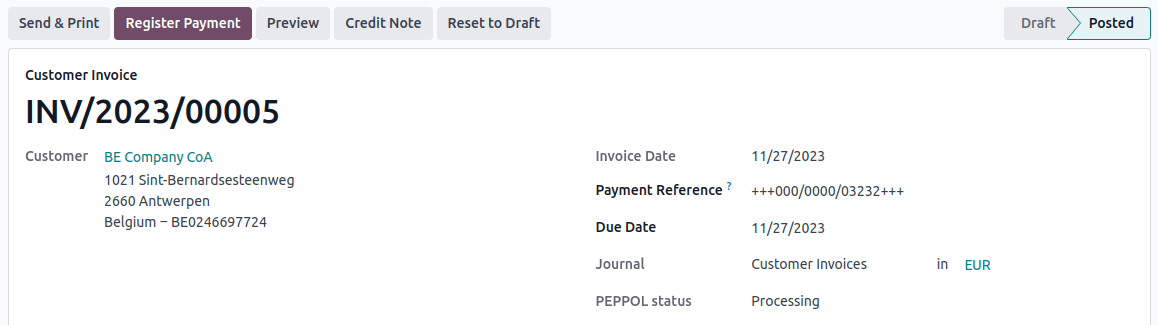
The status is updated to Done once the invoices have been successfully delivered to the contact’s access point.
Tip
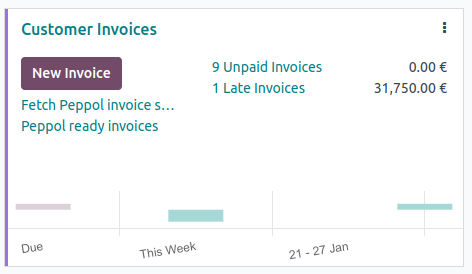
To manually trigger the scheduled action used to check the invoices’ status, go to the Accounting dashboard and click Fetch Peppol invoice status on the corresponding sales journal.
Receive vendor bills
New documents received via Peppol are checked multiple times a day. Received documents are automatically imported into the purchase journal set in the PEPPOL Electronic Document Invoicing section, and corresponding vendor bills are created as drafts and appear in the vendor bills list view.
Tip
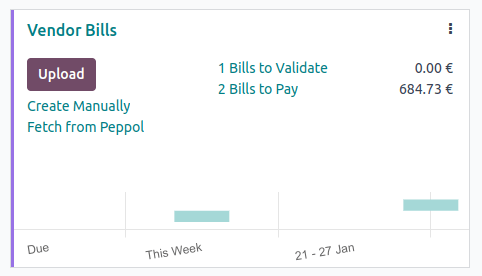
To manually trigger the scheduled action to retrieve incoming Peppol documents, go to the Accounting dashboard and click Fetch from Peppol on the main Peppol purchase journal.
Note
It is also possible to send self-bills via Peppol.
Add extra fields
Important
Adding fields requires the Studio app.
Odoo supports the most common Peppol fields by default, but additional Peppol data can be included when sending e-invoices via Peppol by adding extra fields to the invoice using Studio.
The table below shows:
the extra Peppol fields that can be added. Fields in the:
the data type, which must match the field type when adding the field using Studio
the exact field label that must be entered when adding the field using Studio
Important
Odoo uses a new field’s label to automatically generate the technical name of the field. To ensure the field’s technical name is formatted correctly, it is crucial to use the exact text from the Studio field label column below.
Peppol technical name (XML) |
Data type |
Studio field label |
|
|---|---|---|---|
Main invoice |
TaxPointDate |
Date |
|
ContractDocumentReference.ID |
Text |
|
|
DespatchDocumentReference.ID |
Text |
|
|
AccountingCost |
Text |
|
|
ProjectReference.ID |
Text |
|
|
InvoicePeriodStartDate |
Date |
|
|
InvoicePeriodEndDate |
Date |
|
|
OrderReference.ID |
Text |
|
|
Invoice lines |
OrderLineReference/LineID |
Text |
|
item.buyersItemIdentification |
Text |
|
To add a new field to the invoice form view or invoice line list view, as relevant, follow these steps:
Activate developer mode.
Navigate to (or for Invoicing users).
Open an existing invoice, or click New.
Open Studio by clicking the (Toggle Studio) icon.
If adding a field to invoice line list view, click in the Invoice Lines tab and click Edit List view.
Click and drag a Text or Date field from the panel on the left to the desired location in the view on the right.
Enter the Label exactly as it appears in the Studio field label column in the table above, then click outside the field label to see the Technical Name update automatically.
Click Close to save all changes.
Note
The Technical Name in Odoo should match the format of
x_studio_peppol_tax_point_date. If a mistake is made and the technical name is incorrect,
edit the technical name.
Tip
After a new field has been created as explained above, it can be added to other views such as the invoice list view.
Peppol deregistration from Odoo
Only one Peppol receiver registration can be active for each Peppol endpoint identifier at a time. To stop using Odoo as the Peppol access point, e.g., to switch to another provider or reconfigure the registration for a new database, you must first deregister from Peppol. To do so, go to , scroll down to the PEPPOL Electronic Invoicing section, click Remove from Peppol, and confirm.
Once removed, the Peppol registration is deleted from the database, and documents can no longer be sent or received via Peppol in Odoo.